How to connect the Swallow MCP server to Claude

The Swallow MCP server lets Claude connect directly to your pricing infrastructure, models and tools through the Model Context Protocol. Once connected, Claude can securely interact with your Swallow environment, helping you analyse models, query data, inspect rating logic and automate workflows using natural language.
Getting started only takes a few minutes.
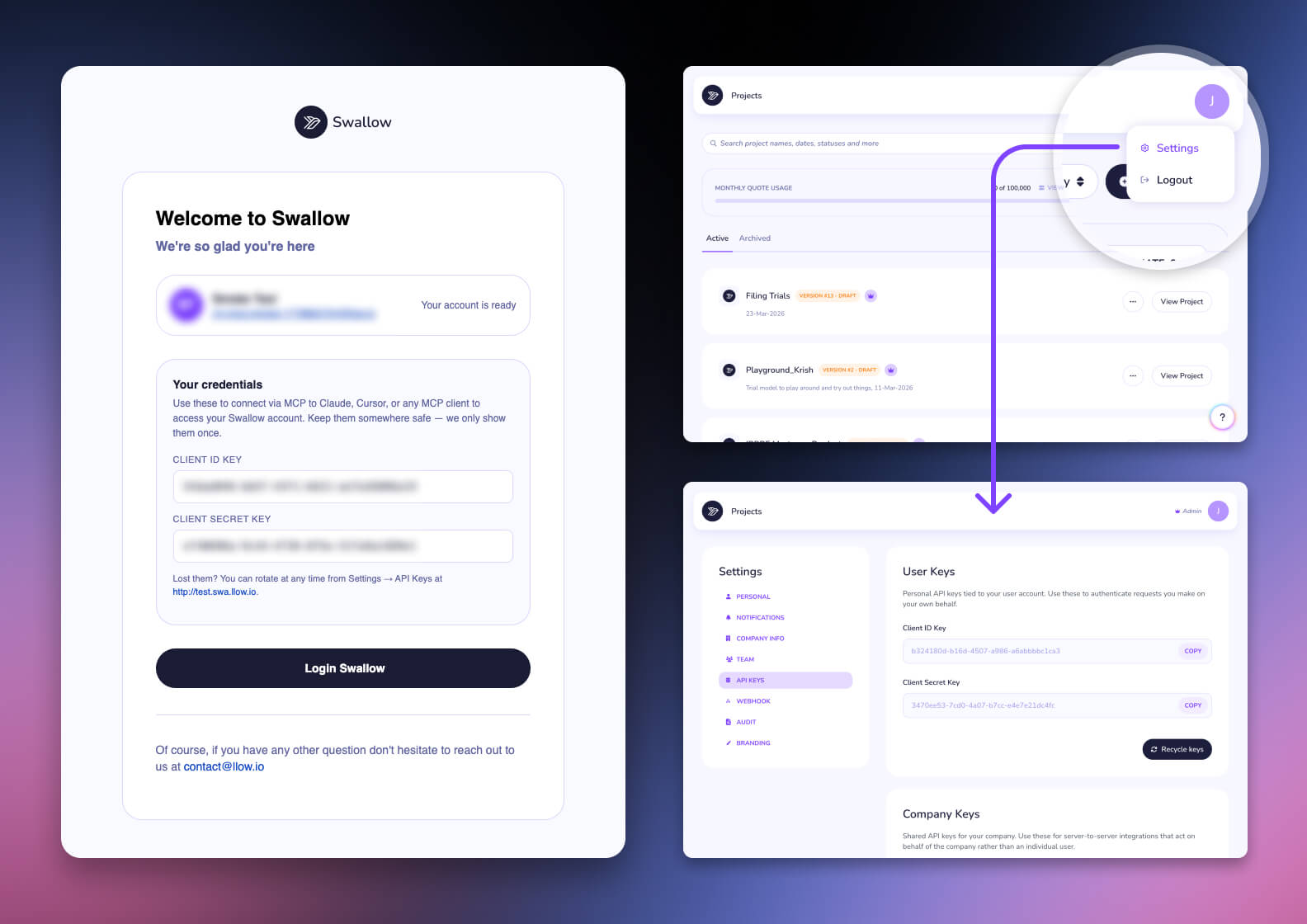
Before beginning, you’ll need access to your Swallow API keys
Use your Swallow account to access the API section where your MCP credentials are stored.
If you’re new to Swallow, you can register for an account and we’ll provide your credentials during onboarding. If you already have a swallow.app account, you can find your MCP credentials in Settings → API → Copy the User Keys
Open Claude Desktop and navigate to the Customise area where MCP servers can be configured.
You’ll be adding a new external MCP connection.

Clicking Connectors in Customise allows you to add external services to your Claude account. This is where Claude manages MCP server connections and integrations.
To add a custom connector, click the plus icon near the top of Customise and select Add custom connector.

Claude will prompt you for connection details and configuration values.
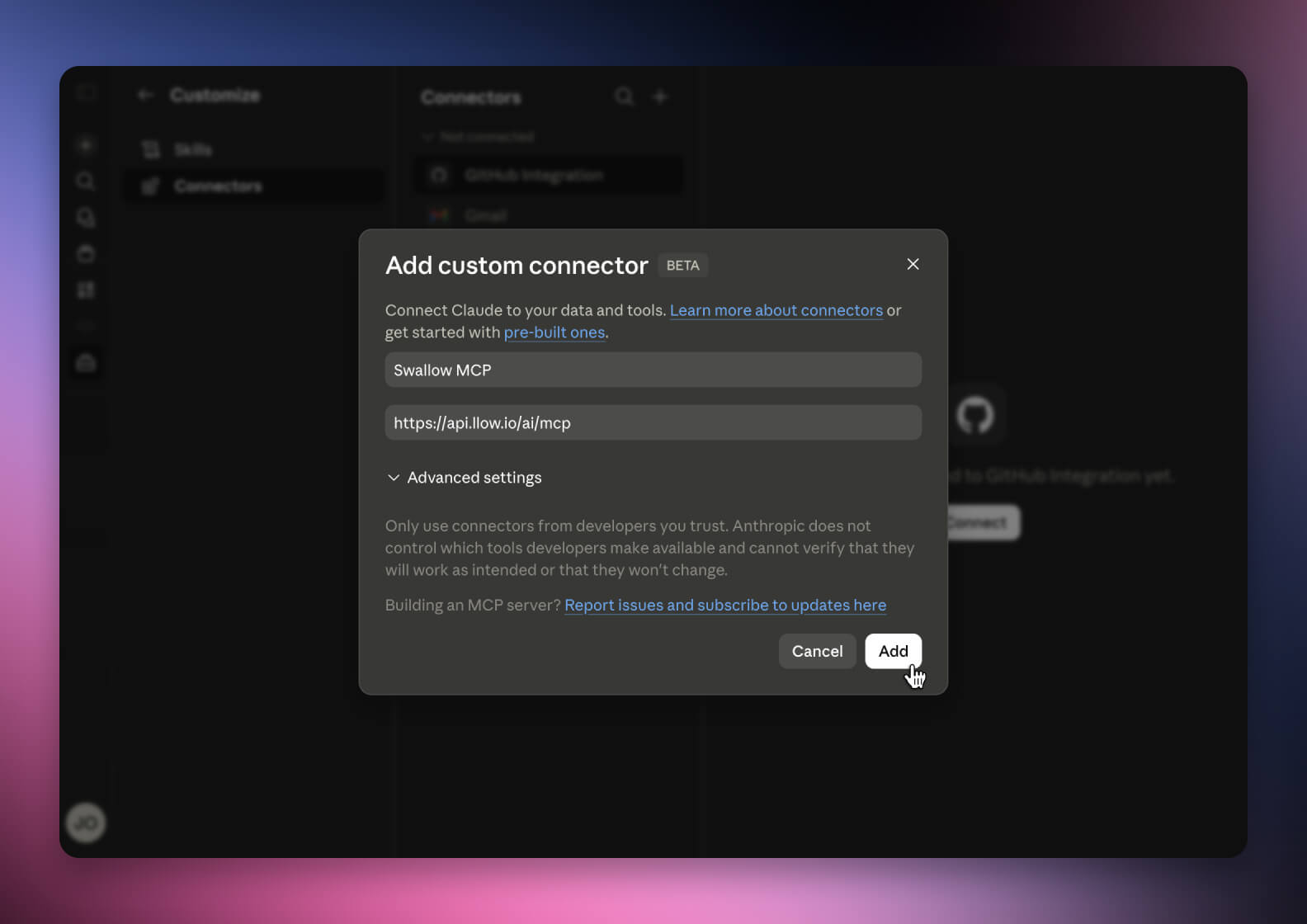
Enter the following as seen below:
Swallow MCP & https://api.llow.io/ai/mcp
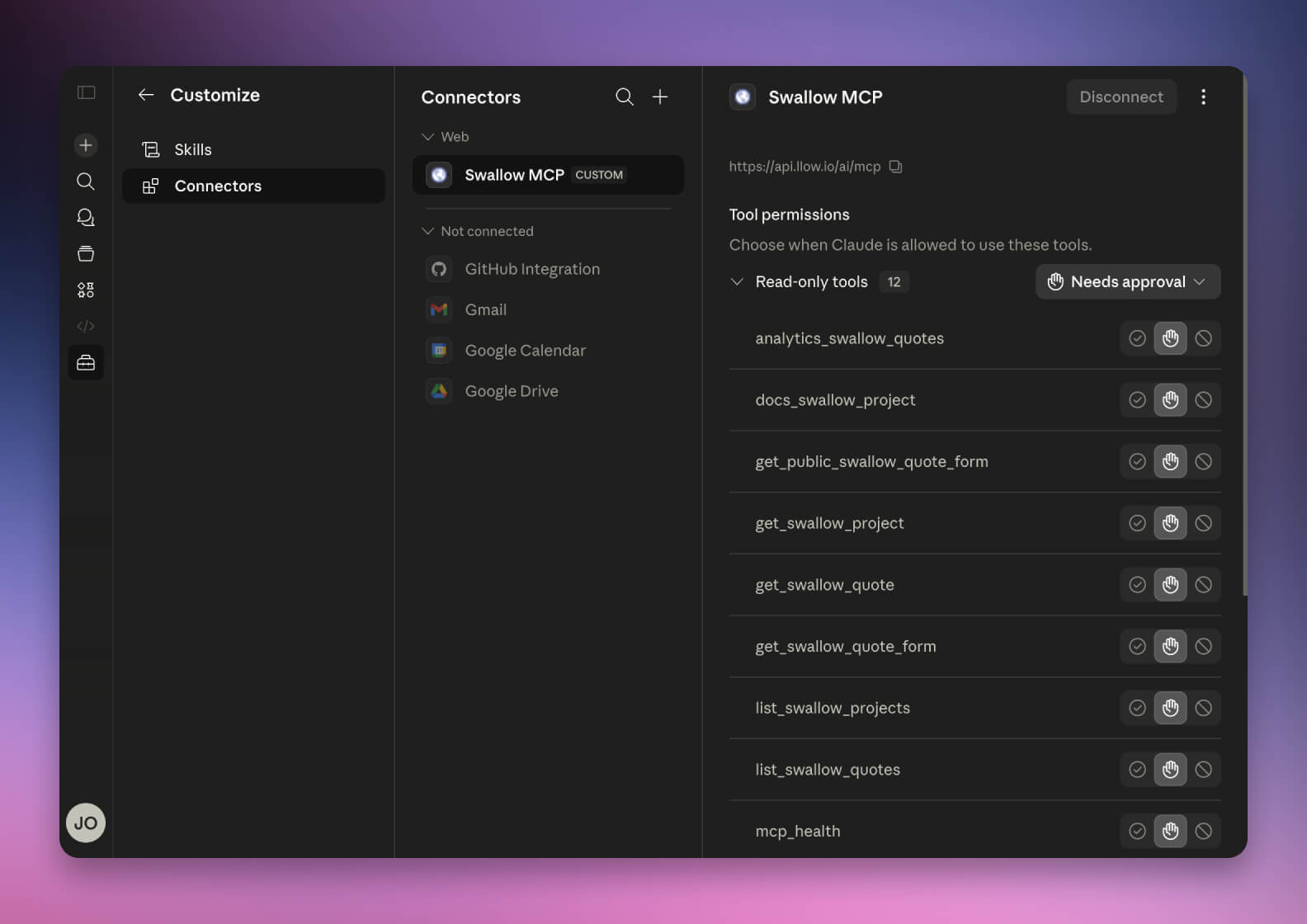
Save the MCP server configuration within Claude.
Claude will validate the connection and prepare the integration. You’ll see a list of Swallow tools now connected to Claude here.
You can now directly query your pricing infrastructure from chat.
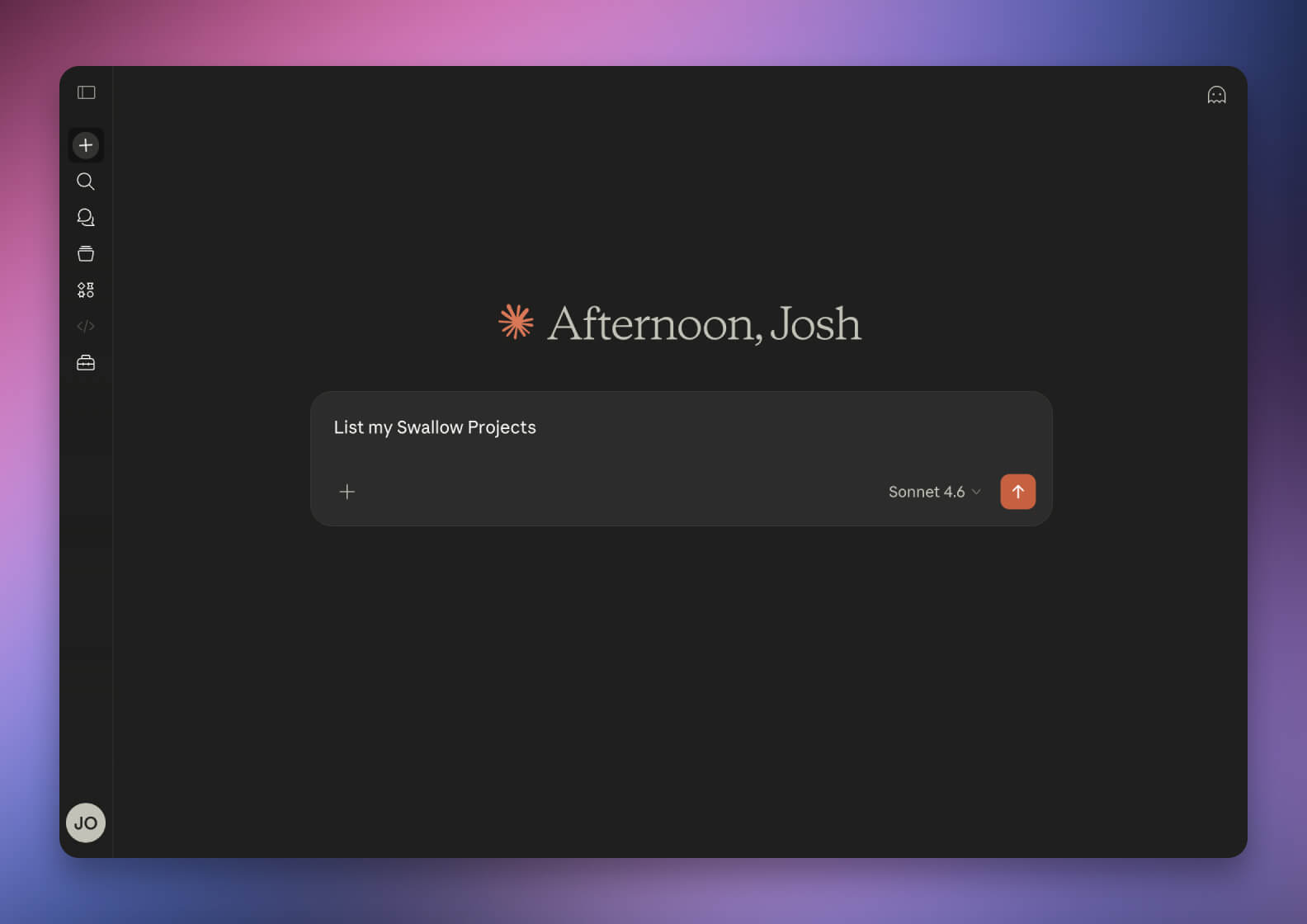
Begin a new chat with Claude and ask it to list my Swallow projects. This will prompt Claude to request your Swallow API credentials, which we discussed in Step 1. Click Connect and a window will appear where you can enter your two unique API keys.
Pasting them in will securely and privately connect Swallow to your specific projects.
You can find your MCP credentials in Settings → API → Copy the User Keys
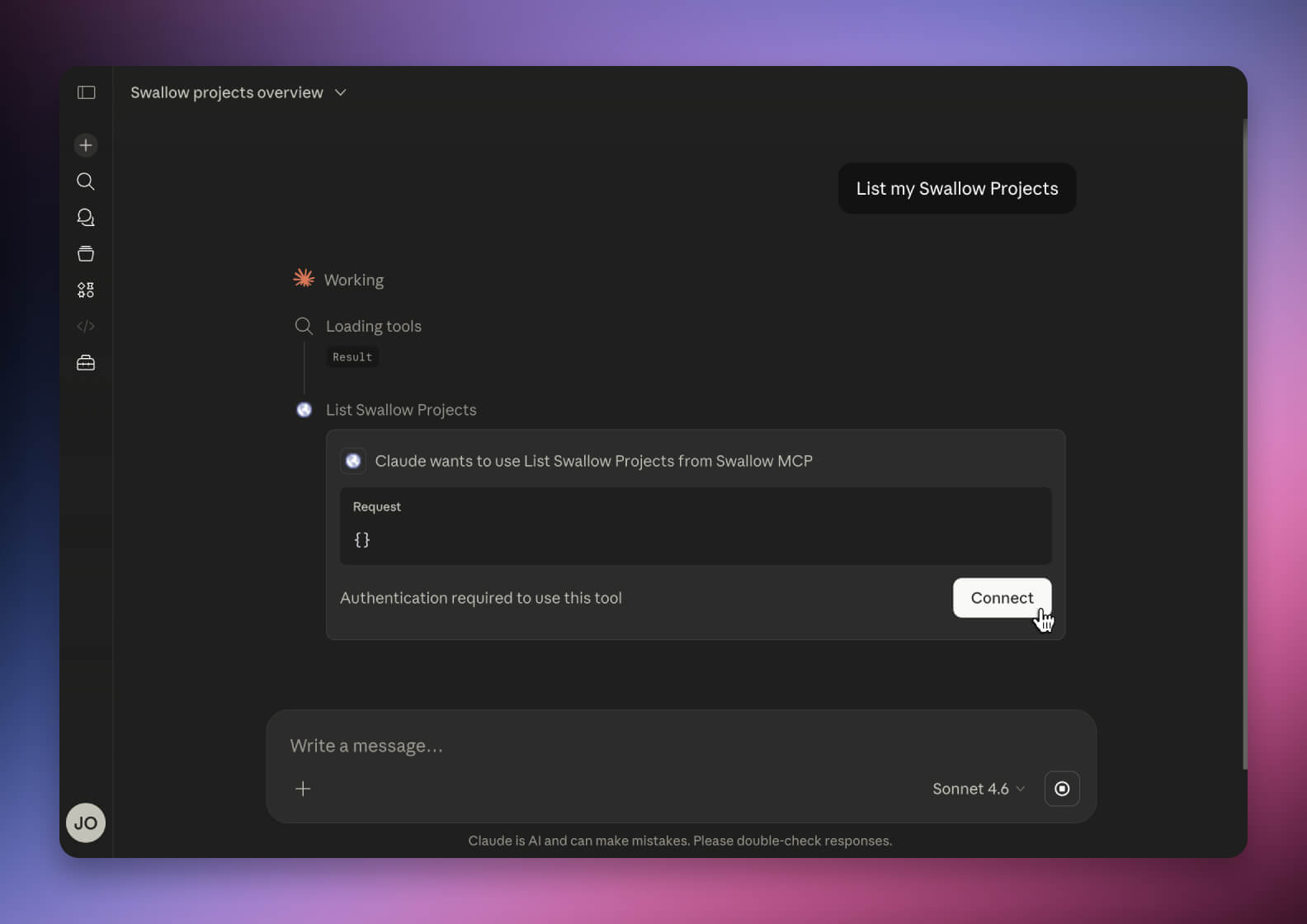

Once authenticated, return to your Claude tab or client. You should now have access to your Swallow account and its tools.
With the integration active, Claude can securely interact with your Swallow environment using natural language prompts.